What Happened to Venere?
- Venere.com launched in Rome in 1994 as an independent Italian hotel booking site
- Private equity firm Advent International acquired a 60% stake in 2007
- Expedia acquired 100% of the company in 2008 and absorbed Venere into its network
- Venere.com stopped accepting new consumer bookings on 1 December 2016 and now redirects to Hotels.com
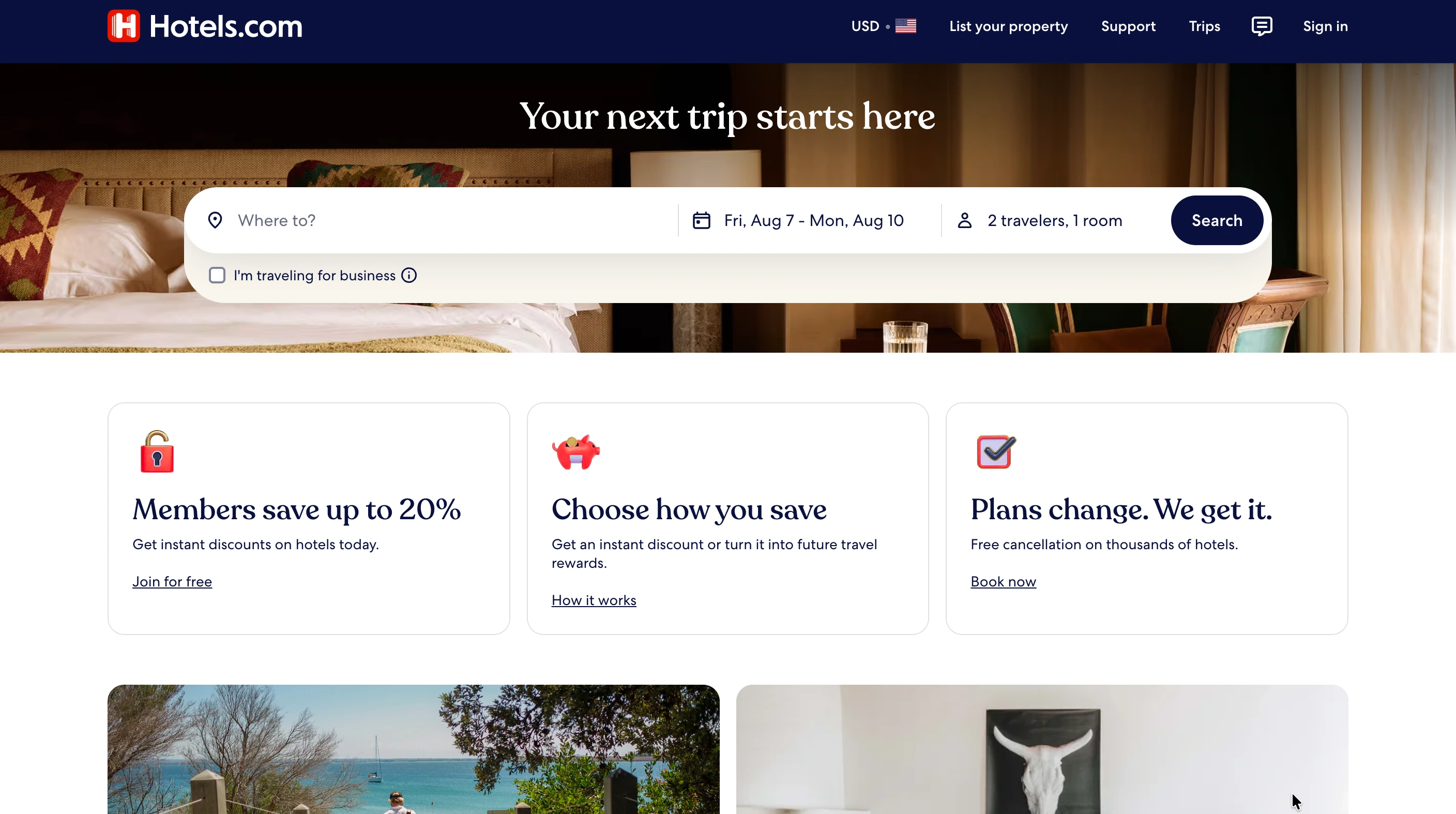
There is no Venere-specific signup form left to fill out, and no Venere-branded storefront to appear on. A property once described as "on Venere" is, today, a property registered through Expedia Group Partner Central and visible on Hotels.com and the group's other brands.
What Do You Need Before You Start?
- Property name, exact street address, city, and zip code, matching your business registration rather than a marketing name
- Business and tax details
- Banking information for payouts
- Amenities list (Wi-Fi, parking, pool, breakfast, and similar)
- High-resolution photos: rooms, lobby, exterior
- Policies: check-in times, cancellation rules, security deposits
Gathering these first keeps you from stopping mid-signup to track something down.
How Do You List Your Hotel Where Venere Traffic Now Goes? (Step-by-Step Process)
1. Go to Expedia Partner Central
Visit the Expedia Group Partner Central registration portal and select "List your property" to start a new profile. This is also where you will log back in later to manage rates, availability, and reviews, so keep the login where your team can find it.
2. Enter Property Basics
Enter your official hotel name, matching your business registration rather than a marketing name. Add your corporate or physical address, and contact information: a name, email address, and primary phone number for the person managing the account.
3. Select Property Type and Specifics
- Property type: "Lodging" for hotels, motels, resorts, and bed and breakfasts; "Private Residence" for vacation rentals; "Apartment" for serviced apartment stays
- Total room count and local currency
- Star rating
- A link to your existing company website, if you have one
This is one of the first real decisions in the flow, and it directly affects how and where your listing surfaces in guest search, so choose based on your actual business, not convenience.
4. Upload Photos and Content
- Descriptions of general policies, check-in rules, and available amenities
- High-resolution photos of the exterior and common areas
- High-resolution photos of each individual room type
A thin photo set is one of the most common reasons a listing underperforms once it is live, especially on a comparison-heavy network like this one.
5. Set Rates, Inventory, and Availability
- Room categories and maximum guest occupancy per room
- Cancellation policies
- Base nightly pricing
- Channel manager connection for automatic syncing, or manual rate and availability entry
Expedia Group's onboarding flow asks directly whether you are linking a channel manager, since that answer determines how much manual rate work the listing creates going forward.
6. Review and Sign the Partnership Agreement
Review Expedia Group's commission structure and distribution terms before signing. Commission rates vary by market and property type, so confirm the exact figures in your own partner agreement rather than assuming a flat rate.
One agreement covers distribution across the Expedia Group network, so you are not signing a second, separate contract for any individual brand within it. Submit for final review once you have confirmed the terms.
How Does Inventory Syncing Work With the Parent Network?
Because Venere has no booking engine of its own anymore, your rates and availability sync at the Expedia Group level, not a Venere-specific one. Whatever channel manager or software you connect during setup pushes updates across the whole group at once.
- Update once in Partner Central (or your channel manager), and it applies group-wide
- There is no separate Venere calendar or rate grid to maintain
- Overbooking risk is group-wide too, so a sync gap affects more than one storefront
What Mistakes Should You Avoid?
- Assuming Venere still has its own signup form and losing time searching for one
- Inconsistent room counts versus your PMS, causing overbookings across the whole Expedia Group network
- Missed rate parity across channels, risking a compliance review or reduced placement
- Stale photos or amenity details after a renovation
- Ignoring guest reviews on the Partner Central dashboard, since they affect visibility group-wide, not just one storefront
How Do You Keep This in Sync With Your Other Channels?
Most independent hotels are not running one Expedia Group brand on its own. They are running Expedia, Booking.com, direct bookings, and whatever else, and keeping all of those rates matched by hand is the real ongoing work, not the registration.
If you are managing Expedia Group distribution alongside Booking.com and direct bookings, and rates are starting to drift, roommaster Channel Manager syncs rates and availability two-way across hundreds of OTAs, including Expedia by name. Update once in your PMS, and every connected channel updates with it.
{{cta-strip}}
Frequently Asked Questions
1. Is Venere.com still active?
No. It stopped taking new bookings on 1 December 2016 and now redirects to Hotels.com, part of Expedia Group.
2. Is Venere the same as Expedia?
Venere was acquired by Expedia in 2008 and fully absorbed into Expedia Group, and the consumer brand has since been retired. There is no separate Venere account, login, or signup process.
3. How do I get my hotel listed where Venere traffic now goes?
Register through Expedia Group Partner Central. That single listing covers Expedia, Hotels.com, and the rest of the group, which is where Venere's traffic was redirected.
4. What channel manager or software works with this listing?
Any channel manager connected to Expedia Group can push rates and availability to this listing automatically instead of requiring manual updates.

.png)
.png)
.png)